Skip to content
Boater Briefer™
  • QuickStart
  • About

Quick Start Guide

Last updated April 15, 2026 · v1.0.0

Know Before You Go

Real-time marine conditions, safety and fishing briefings, and tide data — everything you need before heading out on the water.
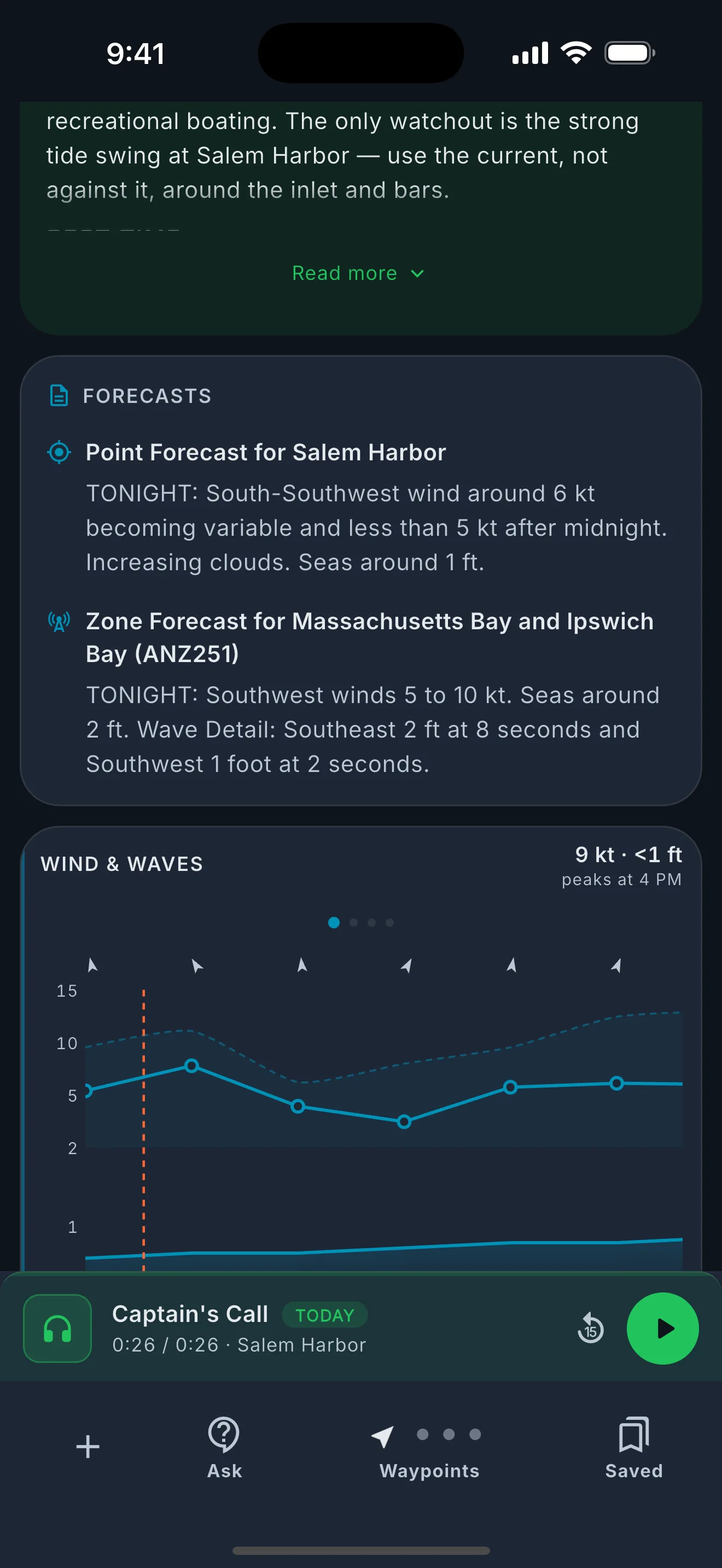
Boater Briefer™ dashboard showing marine conditions, tide chart, and weather data for a coastal location.

Step 1 — Find your location

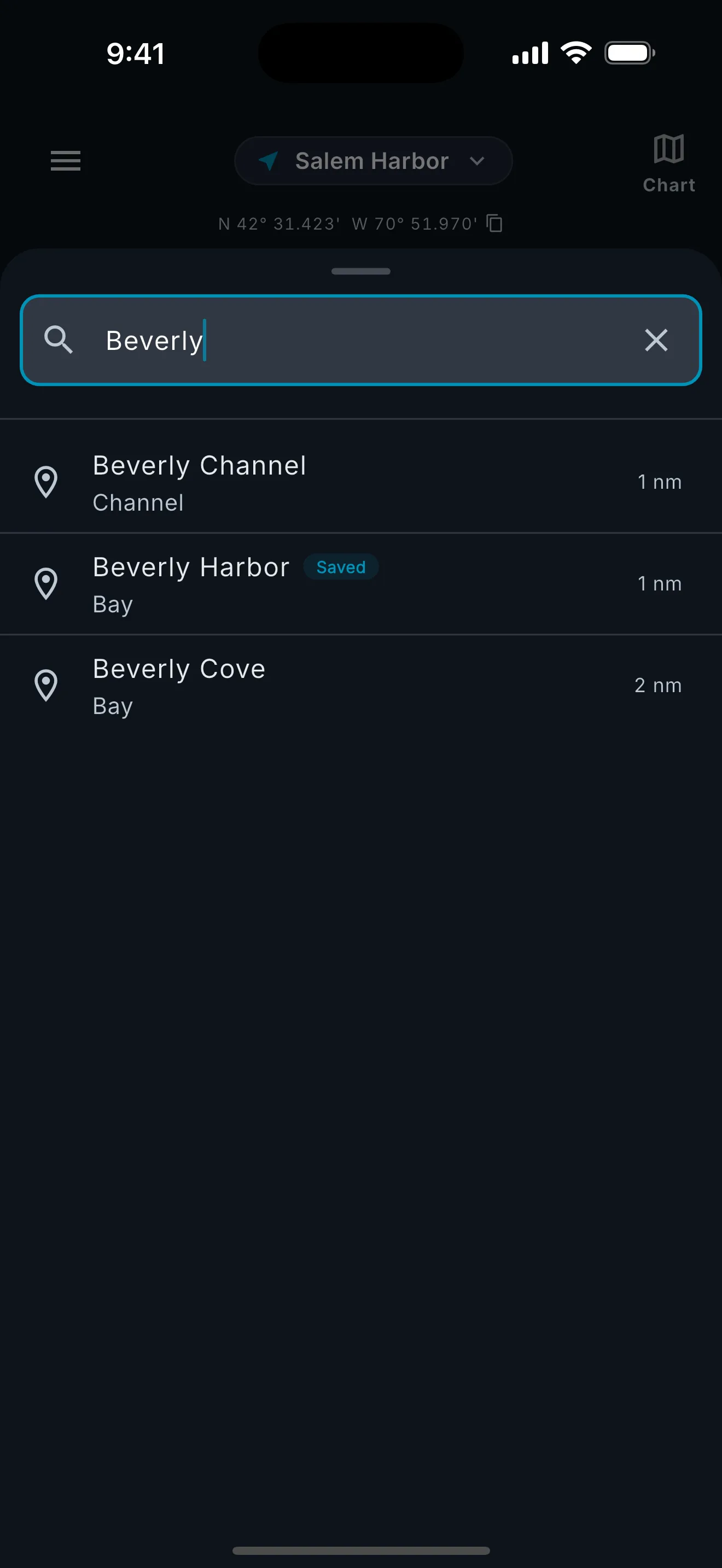
Tap Map in the bottom bar to explore the nautical chart, or tap the location name at the top to search for a harbor, bay, or marina by name.
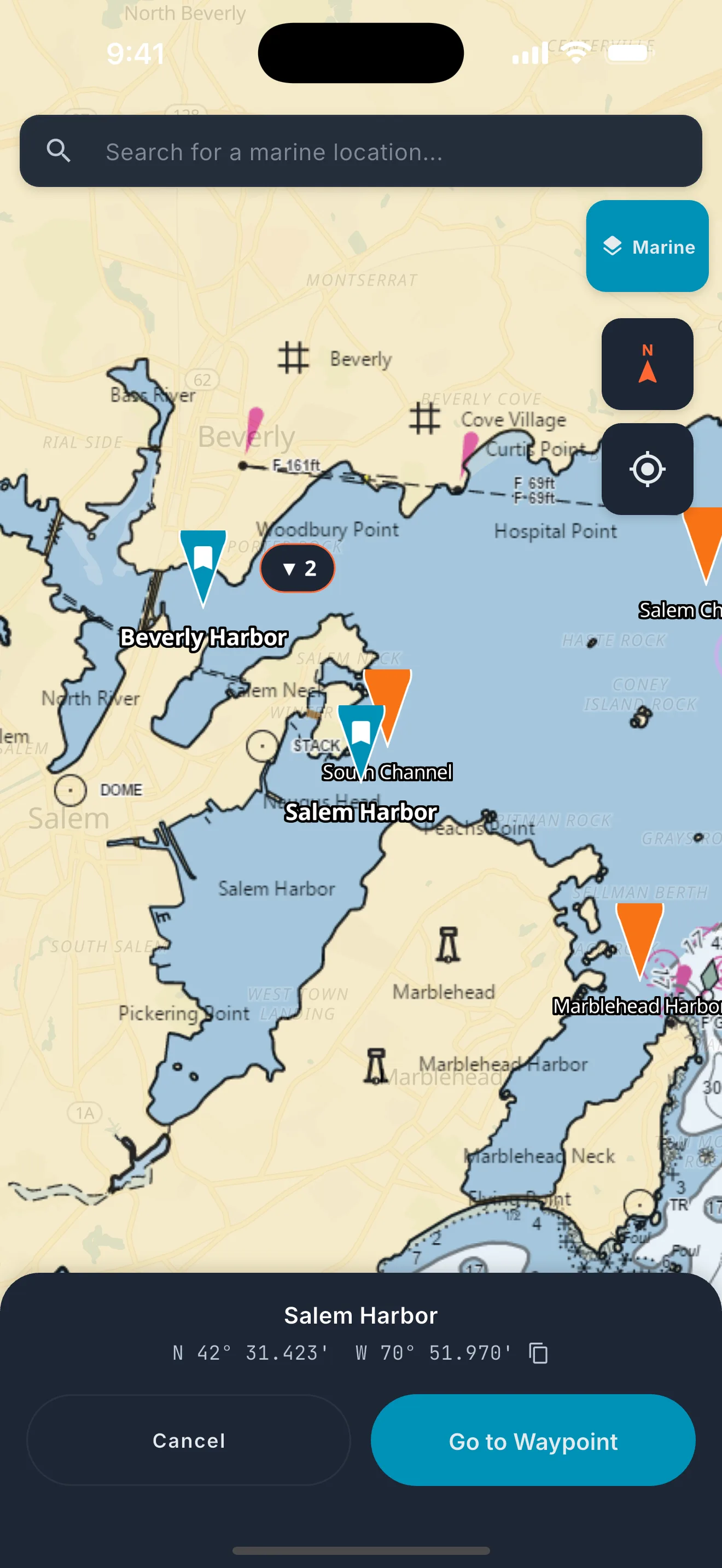
Tip: The NOAA nautical chart overlay shows navigation aids, channels, and depth contours.
Location picker showing interactive nautical chart map.
Explore the chart
Location search showing results for Beverly Harbor.
Search by name

Quick switch

Tap the location name at the top to quickly switch between nearby marine features — harbors, bays, and channels close to your current spot.
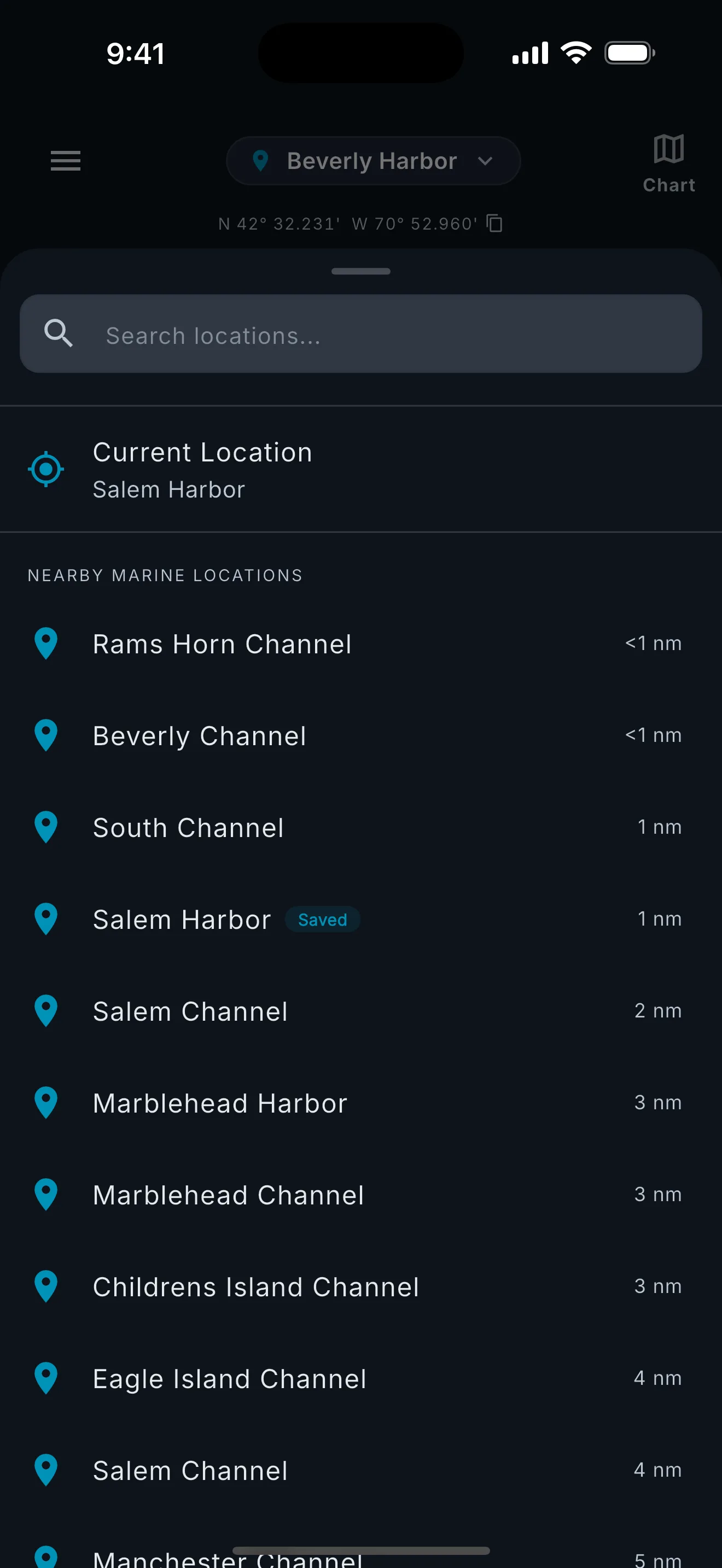
Location switcher showing nearby marine features like harbors and bays.
Quick switch nearby

Step 2 — Save your favorite spots

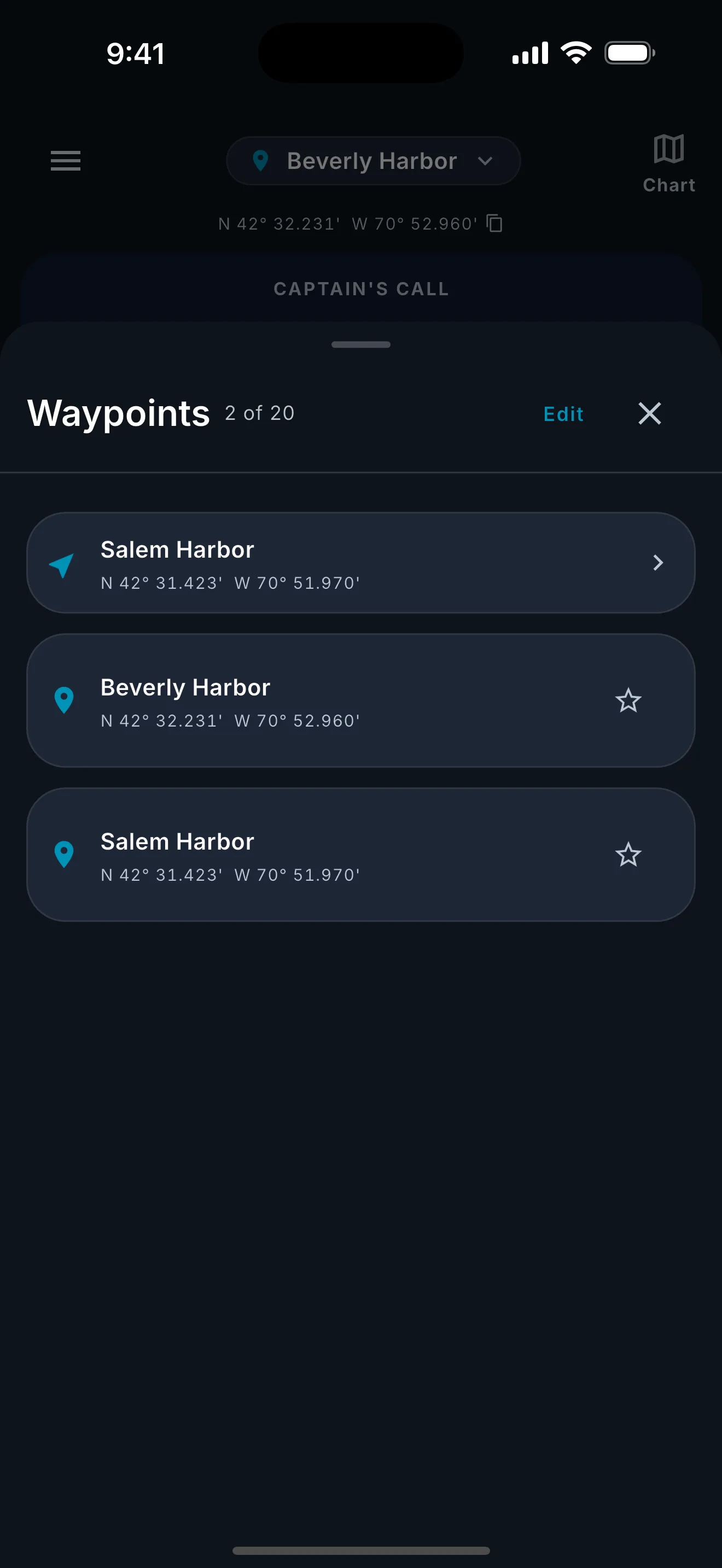
Found a great spot? Save it as a waypoint. Tap Saved in the bottom bar to manage your list — reorder, rename, or set a home location.
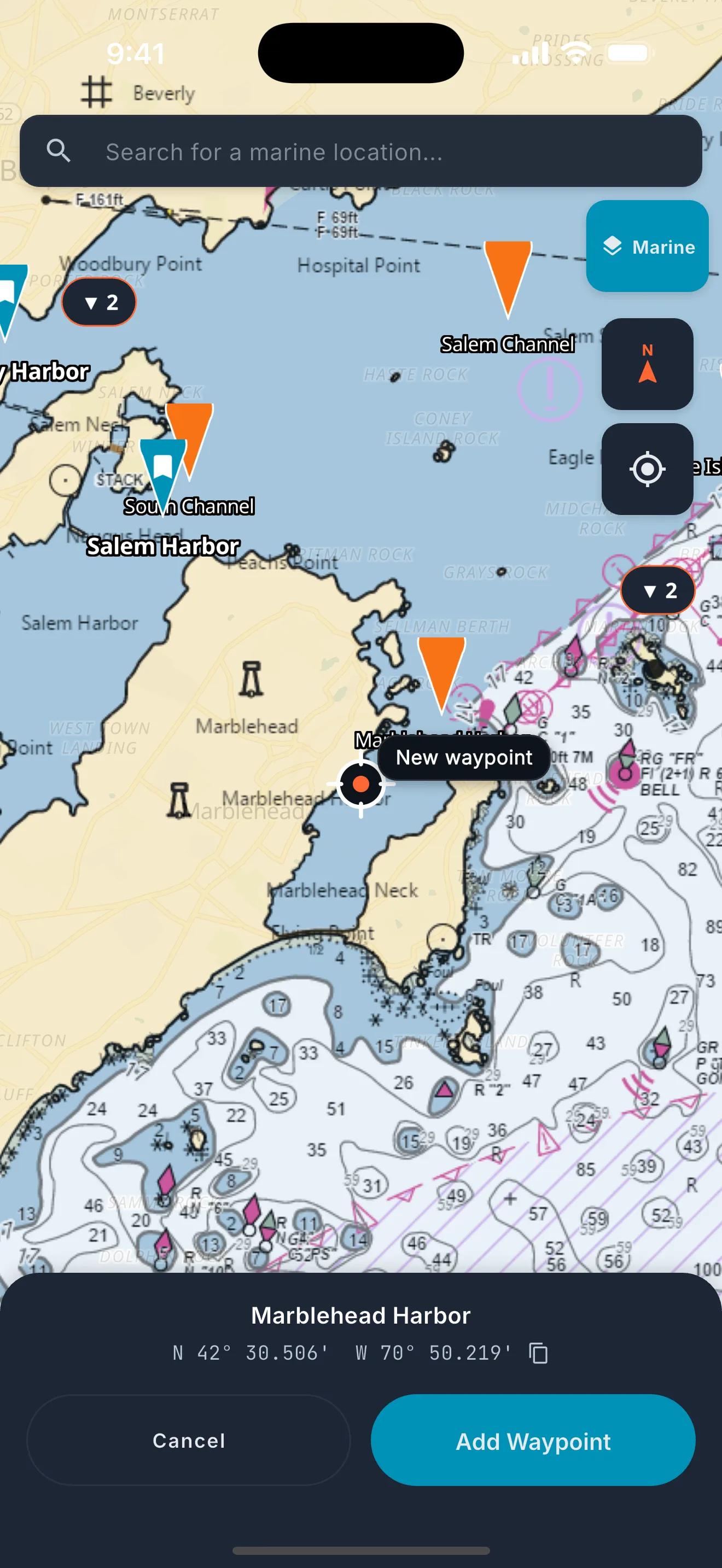
Tip: Star a waypoint to make it your home — the app opens there by default.
Saving a new waypoint from the location picker.
Save a waypoint
Waypoint drawer showing saved locations with reorder and edit options.
Manage your list

Step 3 — Swipe between locations

Each saved waypoint gets its own page with independent conditions. Swipe left and right to move between them using the carousel dots above the bottom bar.
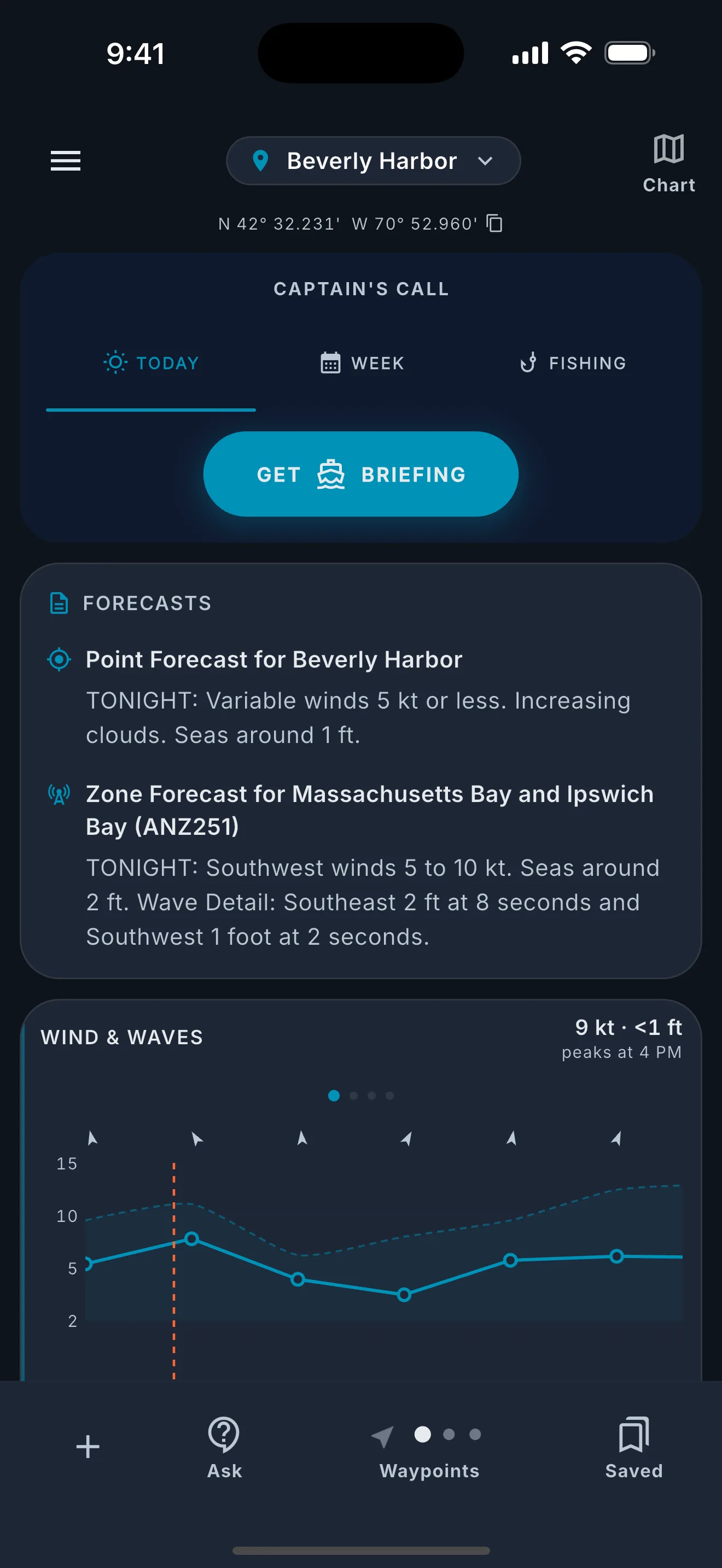
Tip: The navigation arrow is your GPS location. Circle dots are saved waypoints.
Dashboard footer showing navigation dots for multiple saved locations.

Step 4 — Get your briefing

Today

Tap “Get Briefing” for a real-time safety assessment of current conditions. The status ring glows green, yellow, or red based on the overall safety rating.
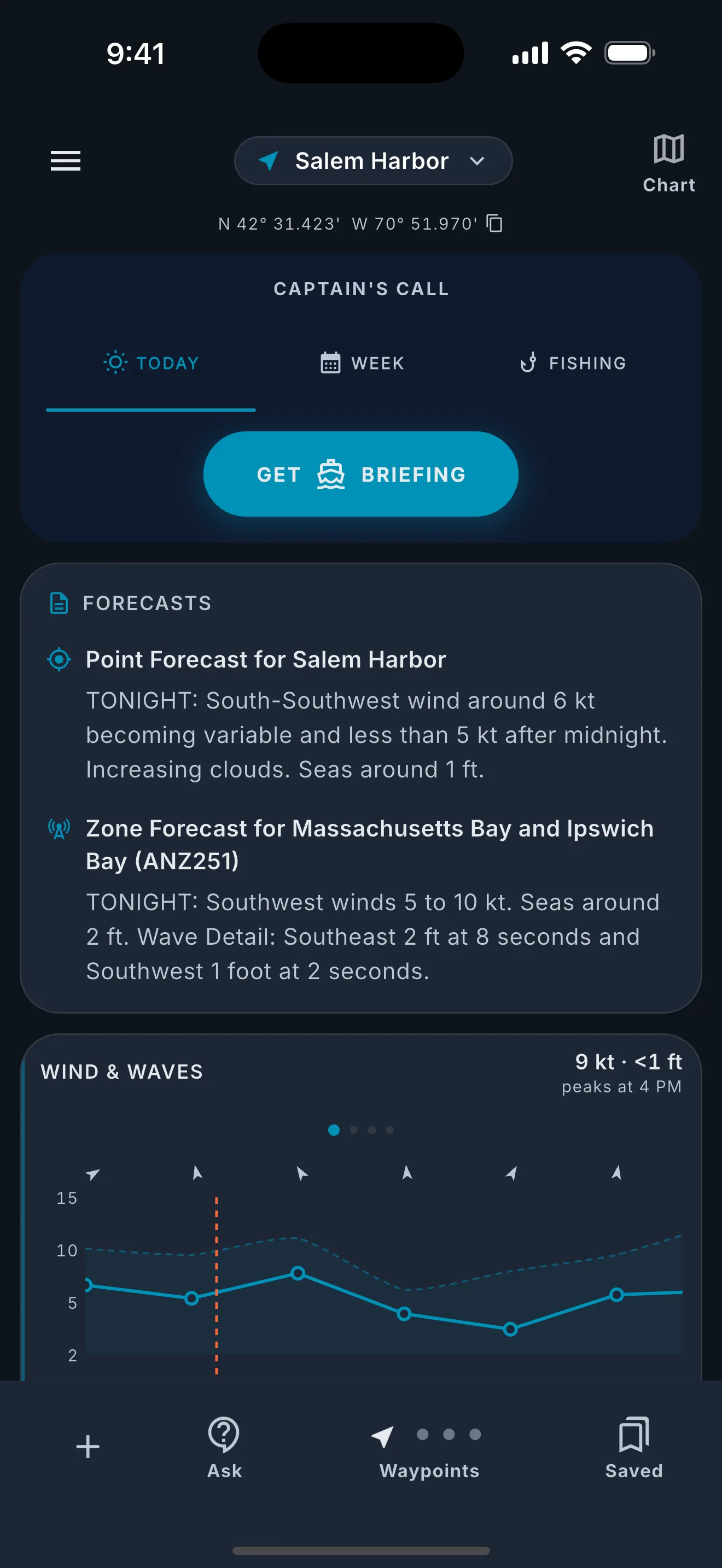
Captain's Call card showing the Get Briefing button.
Ready to brief
Captain's Call showing a safety briefing result with conditions status.
Safety assessment

Listen to your briefing

Every briefing includes an audio version that plays automatically. Use the controls to pause, rewind, or share.
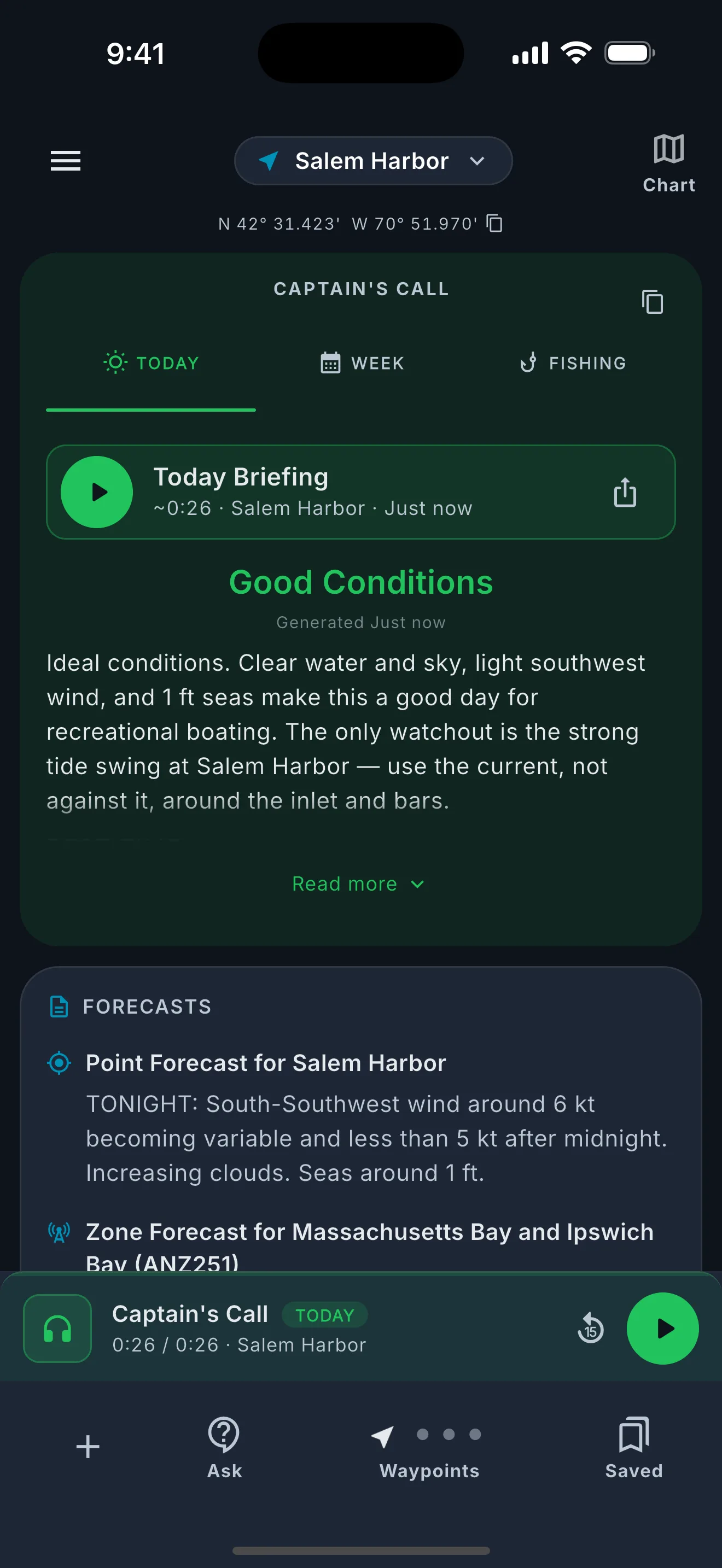
Audio player with play/pause, rewind, and share controls.

Week

Switch to the Week tab for a multi-day marine forecast. Each day shows wind, seas, and a safety rating to help you plan.
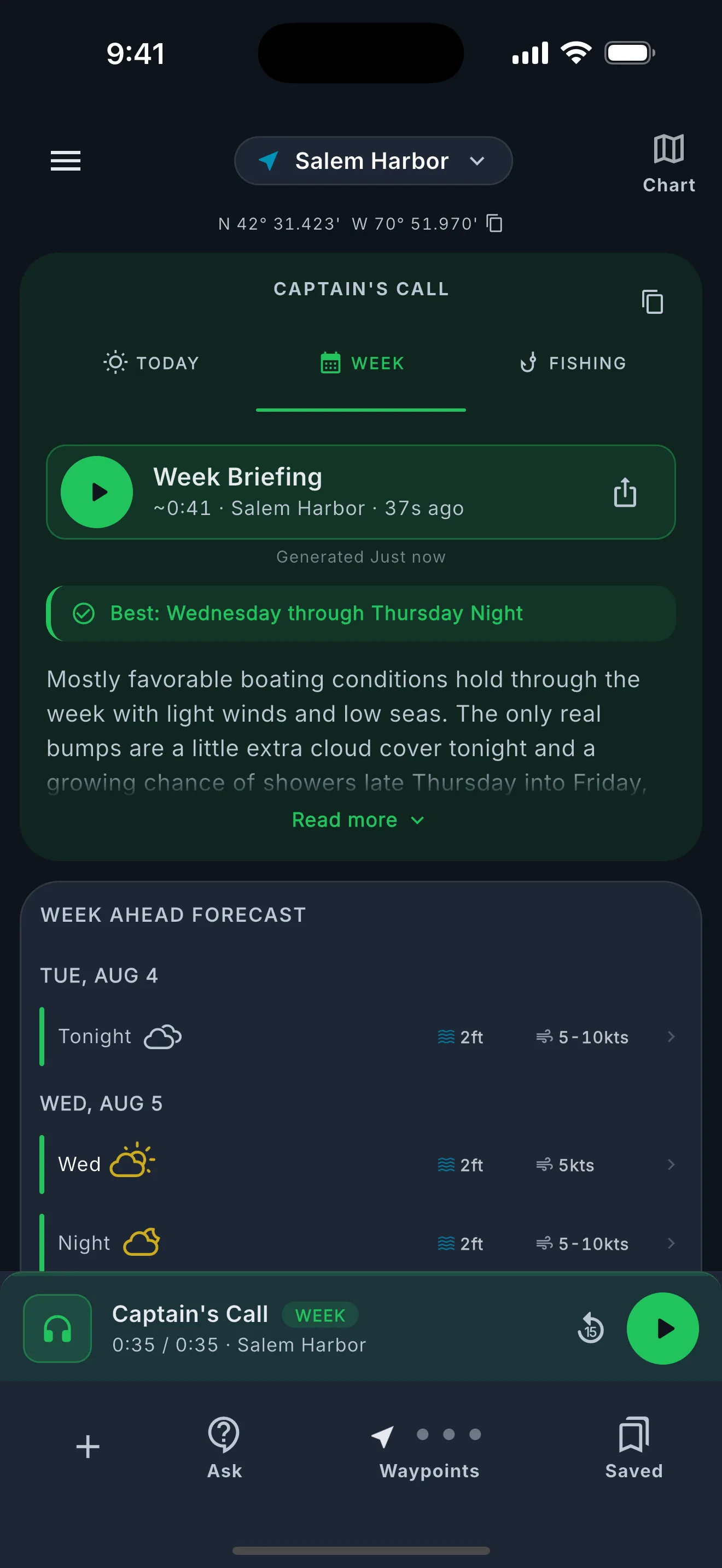
Week forecast showing daily marine conditions with safety ratings.

Fishing

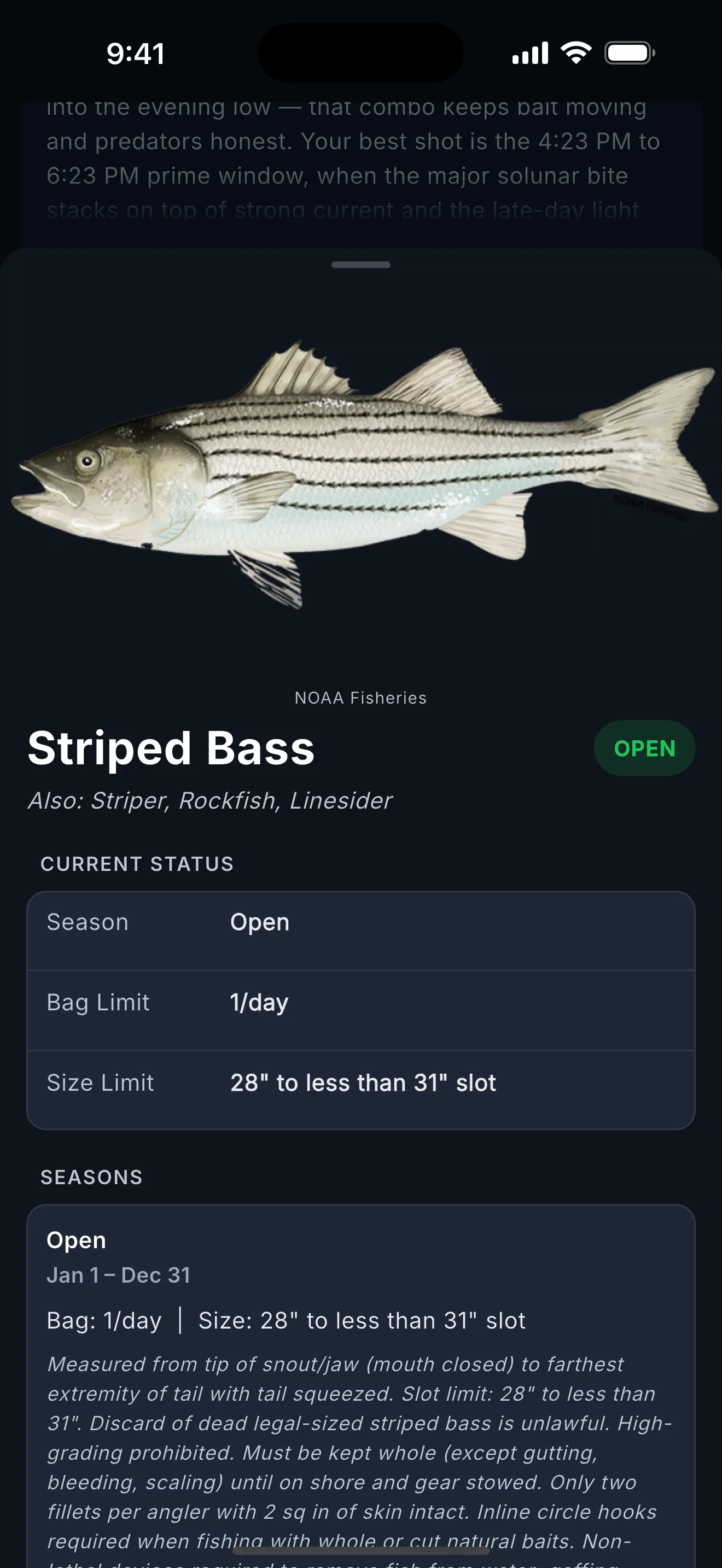
Switch to the Fishing tab for a local fishing briefing — best times, target species with seasons and regulations, and hot spots near you. Tap any species for photos, size limits, and current season status.
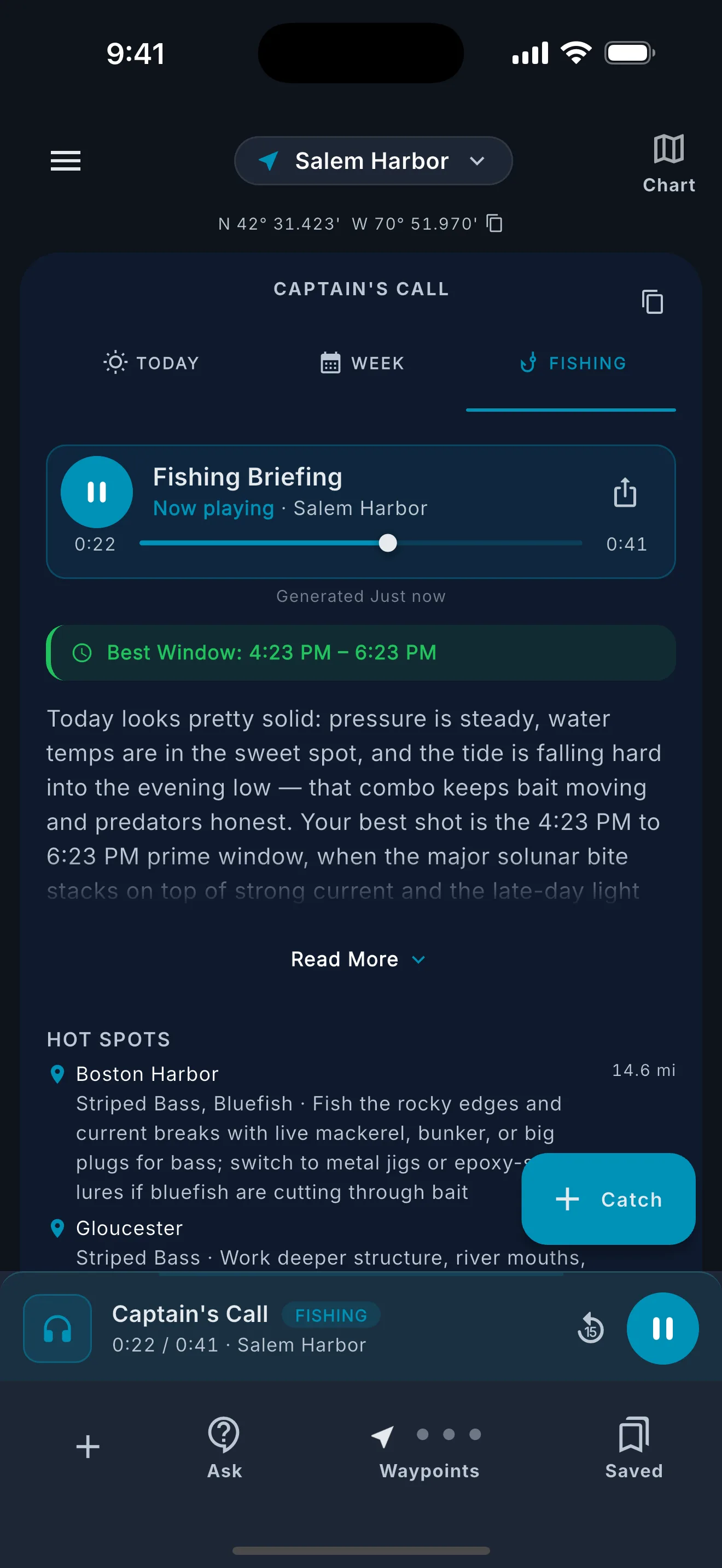
Tip: The Local Guide sub-tab shows state-specific fishing spots, seasonal patterns, and gear recommendations.
Fishing tab showing AI briefing with target species and best fishing windows.
Fishing briefing
Species detail drawer showing photo, season dates, and size limits.
Species detail

Condition cards

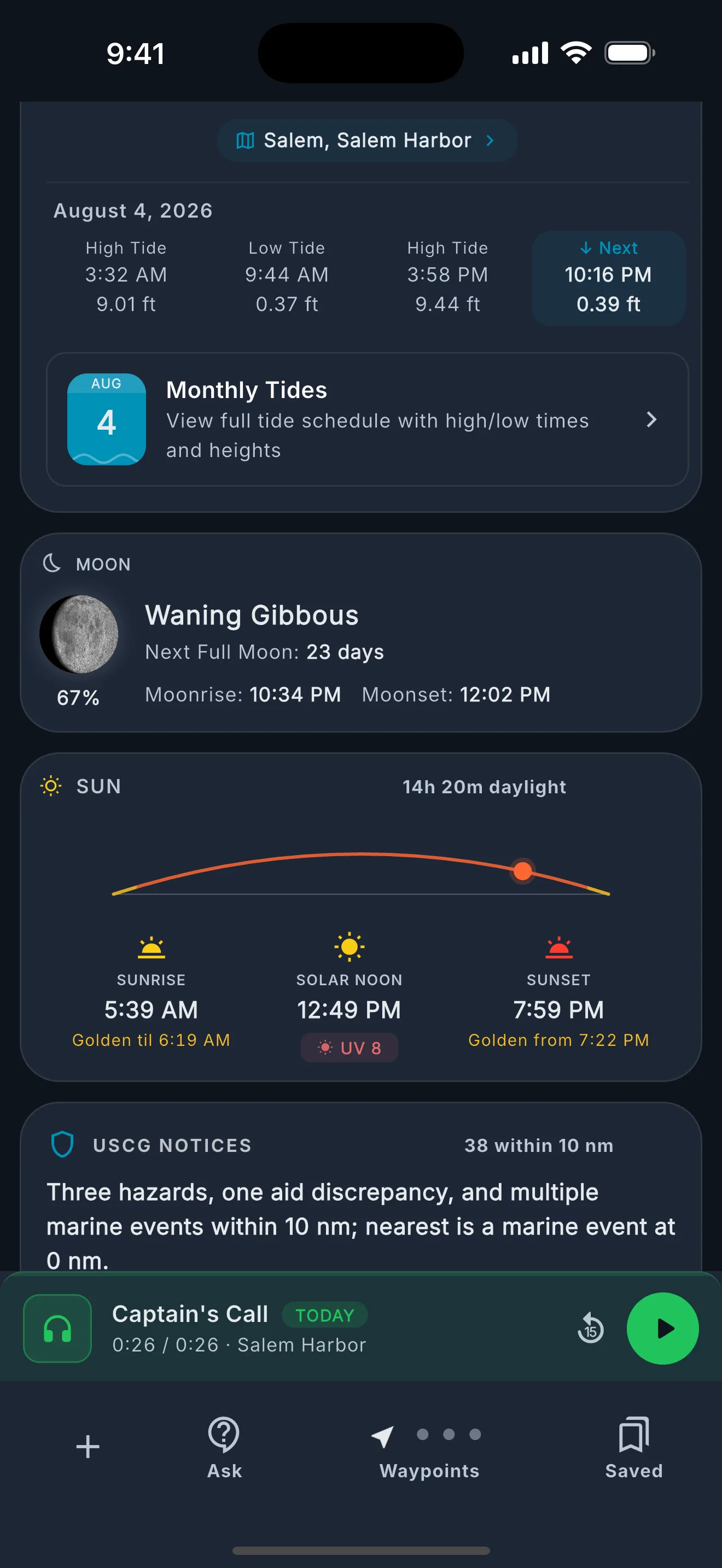
Below the briefing, find detailed data cards with real-time and forecast information — Wind & Seas, Tide Chart, NWS Forecast, Sunrise & Moon.
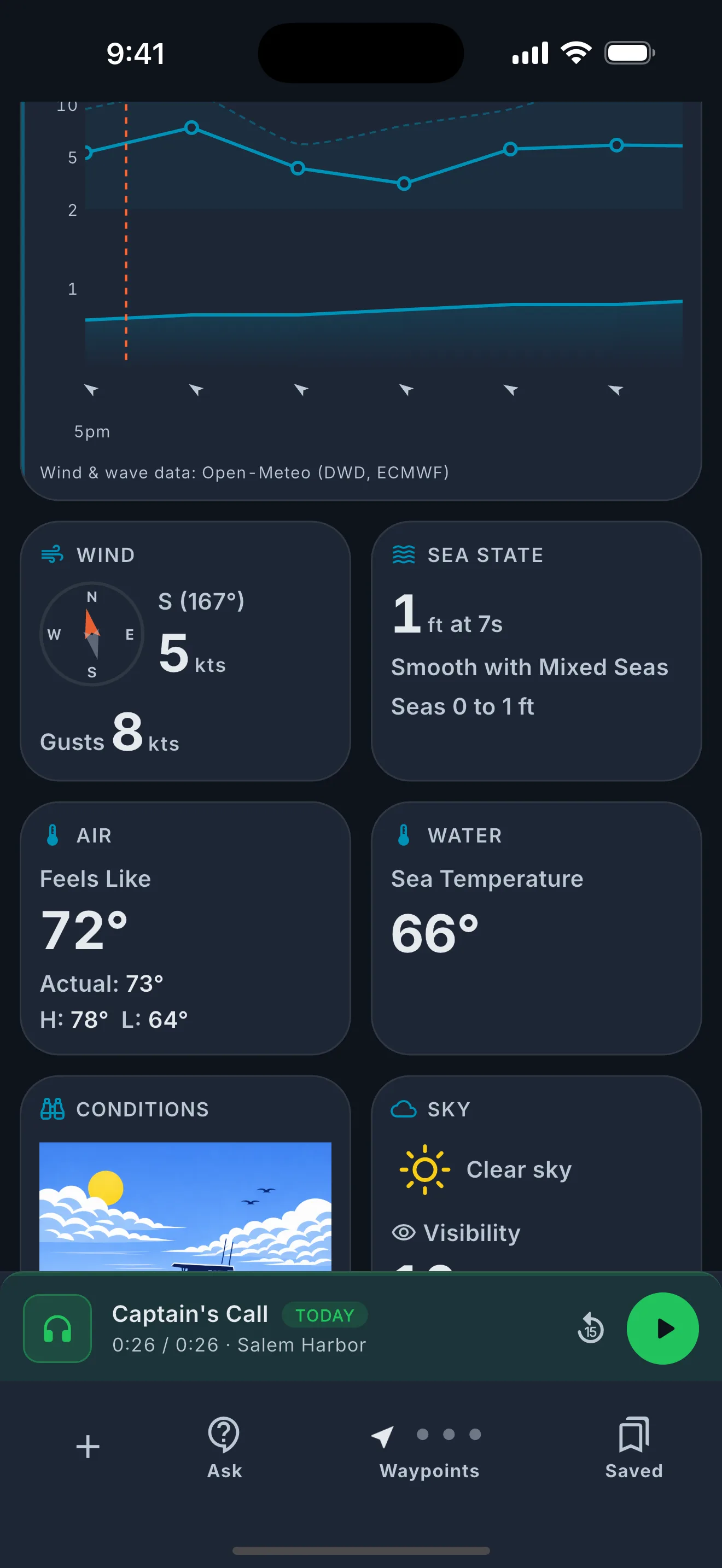
Conditions grid showing wind, seas, water temperature, and tide chart.
Conditions & Tides
Astronomical data showing sunrise, sunset, moonrise, moonset, and moon phase.
Astro

Monthly tide schedule

Tap the calendar icon next to the tide station name to open a full monthly tide schedule. Browse highs, lows, moon phases, and sunrise/sunset times for any month.
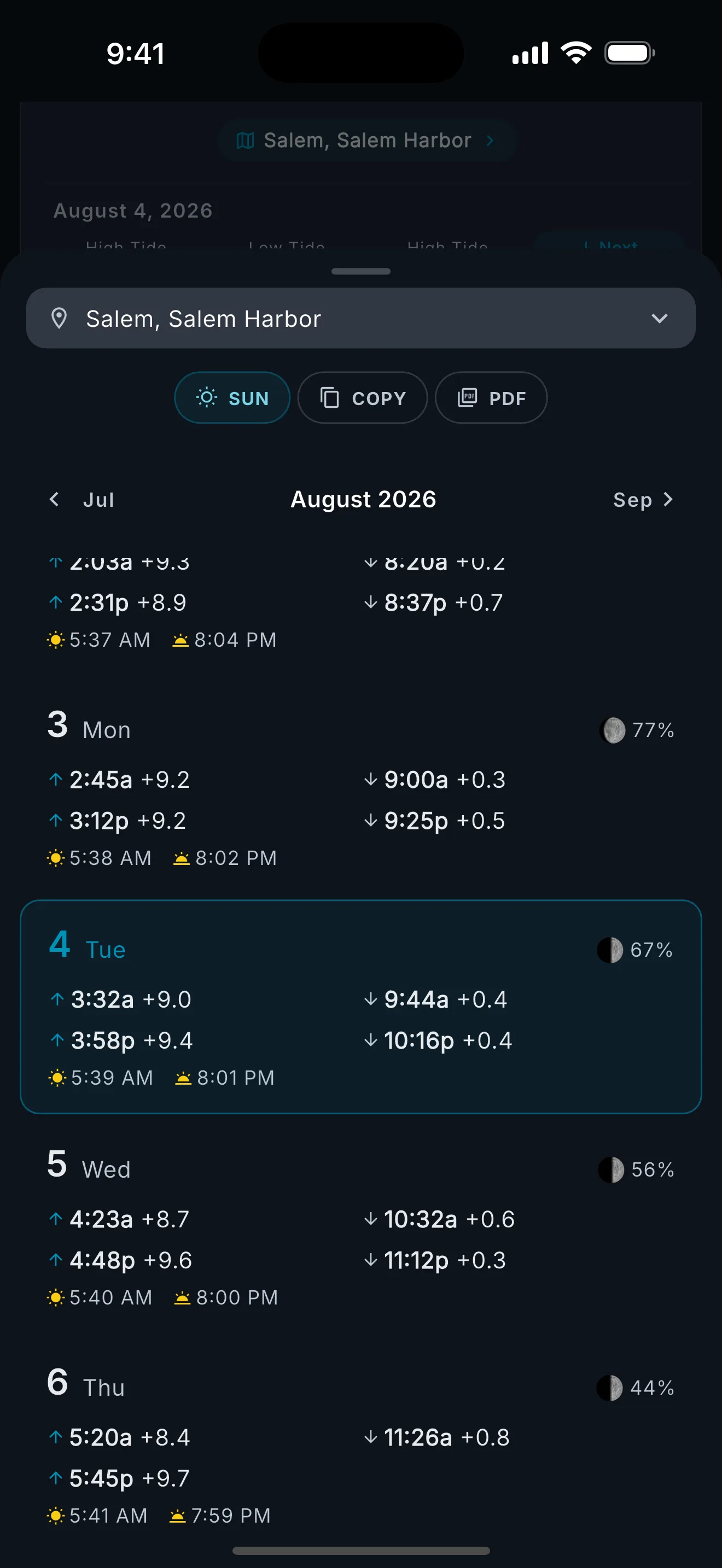
Tip: Use the station selector to switch between nearby NOAA tide stations. You can search by station name or state abbreviation.
Monthly tide schedule showing daily highs, lows, moon phases, and sunrise/sunset times.
Monthly tides

Step 5 — Share your briefing

Copy the briefing text to your clipboard with the copy icon in the top corner. Tap the share button on the audio player to save or send the MP3 file.
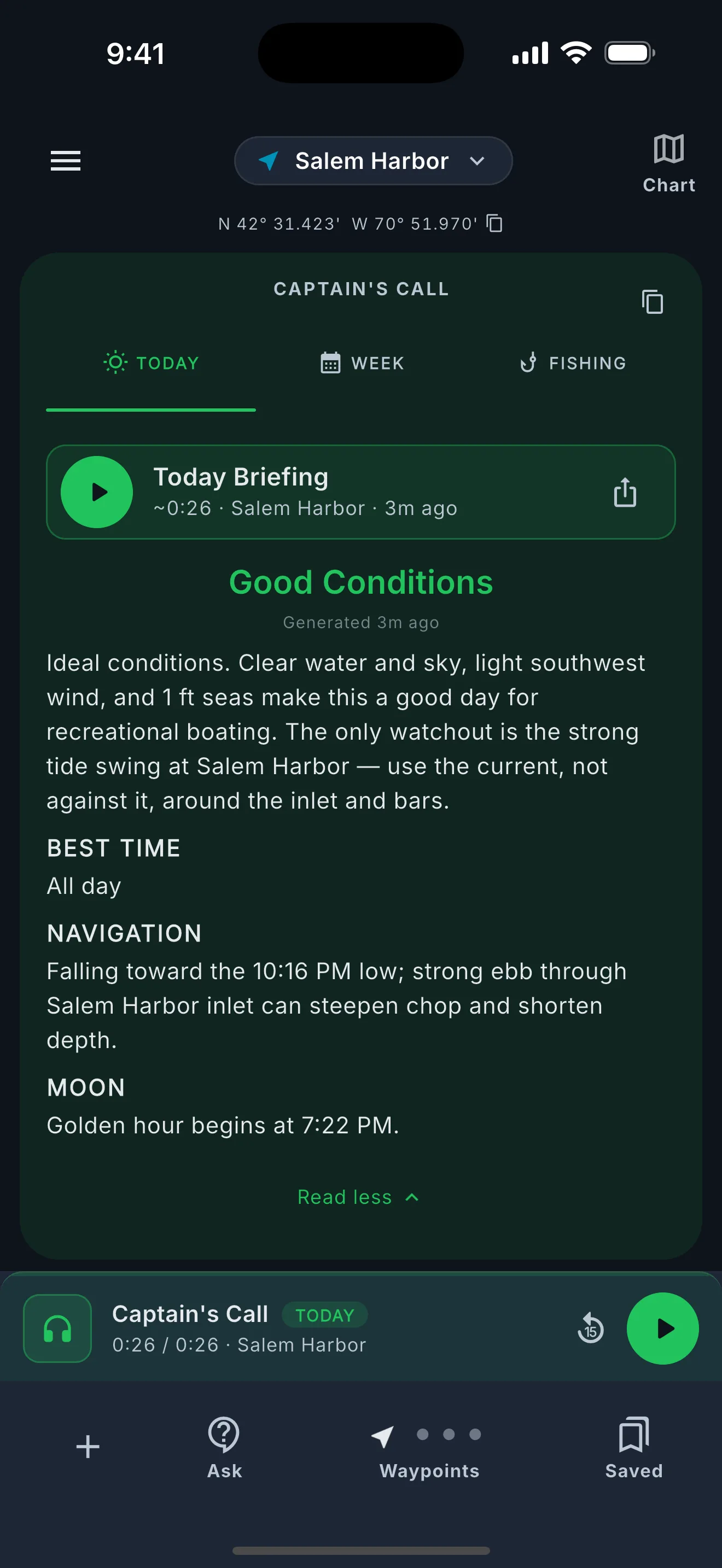
Tip: The share button opens your device’s native share sheet so you can send the MP3 via text, email, or AirDrop.
Captain's Call card showing the copy-to-clipboard icon and audio share button.

Step 6 — Refresh and customize

Pull down on the page to refresh all conditions data. Tap Settings in the bottom bar to adjust briefing detail level, voice, and theme.
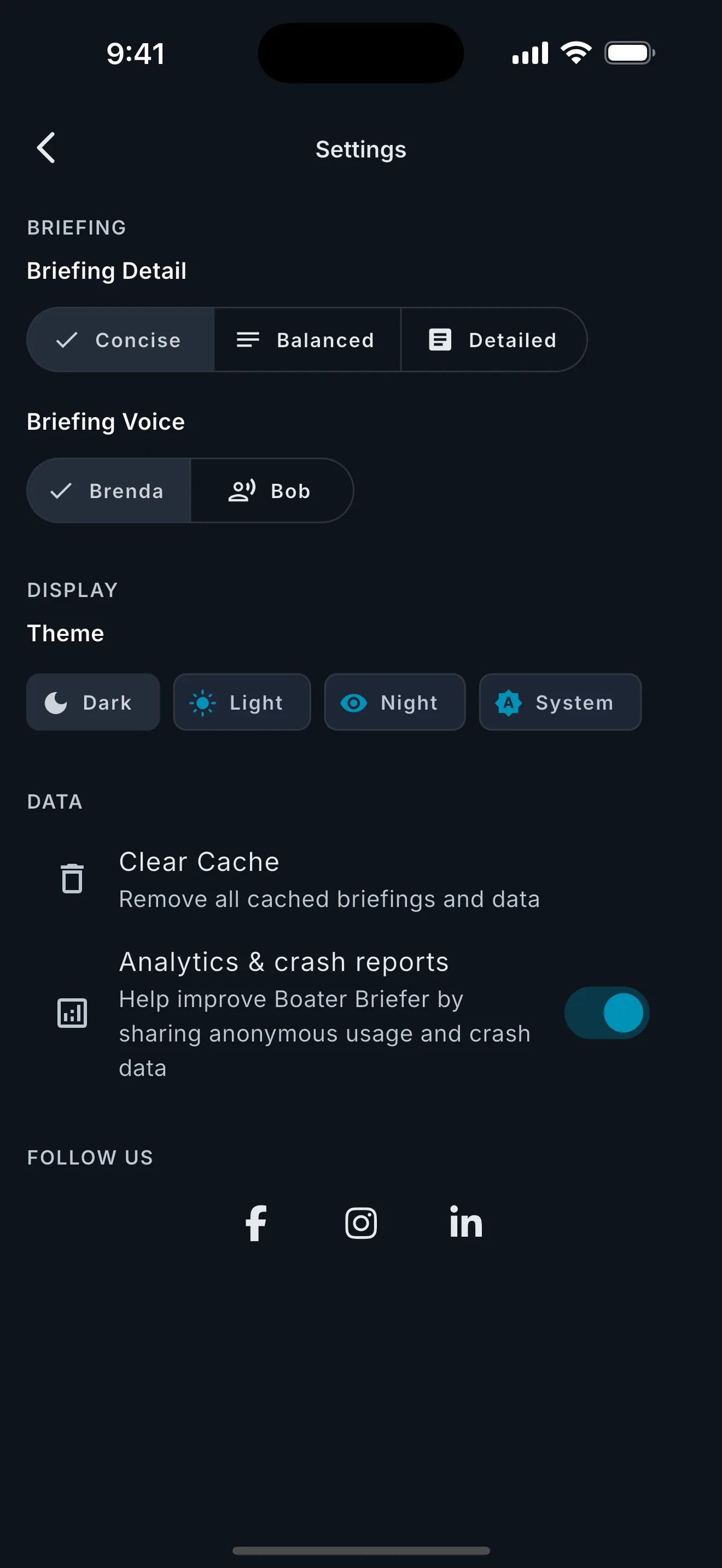
Tip: Briefing detail: Concise (~5 sec), Balanced (~10 sec), or Detailed (~15 sec).
Settings drawer showing briefing detail level and voice selection options.

Boater Briefer™

Know before you go.

Product

  • Home
  • QuickStart
  • About
  • Press

Legal

  • Disclaimer
  • Terms of Use
  • Privacy Policy

Contact

  • support@innealta.com

© 2026 Innealta LLC. All rights reserved.

Boater Briefer™ is a trademark of Innealta LLC.

We use analytics to improve the site.

Google Analytics helps us understand how visitors use innealta.com. You can accept or reject at any time. See our Privacy Policy for details.